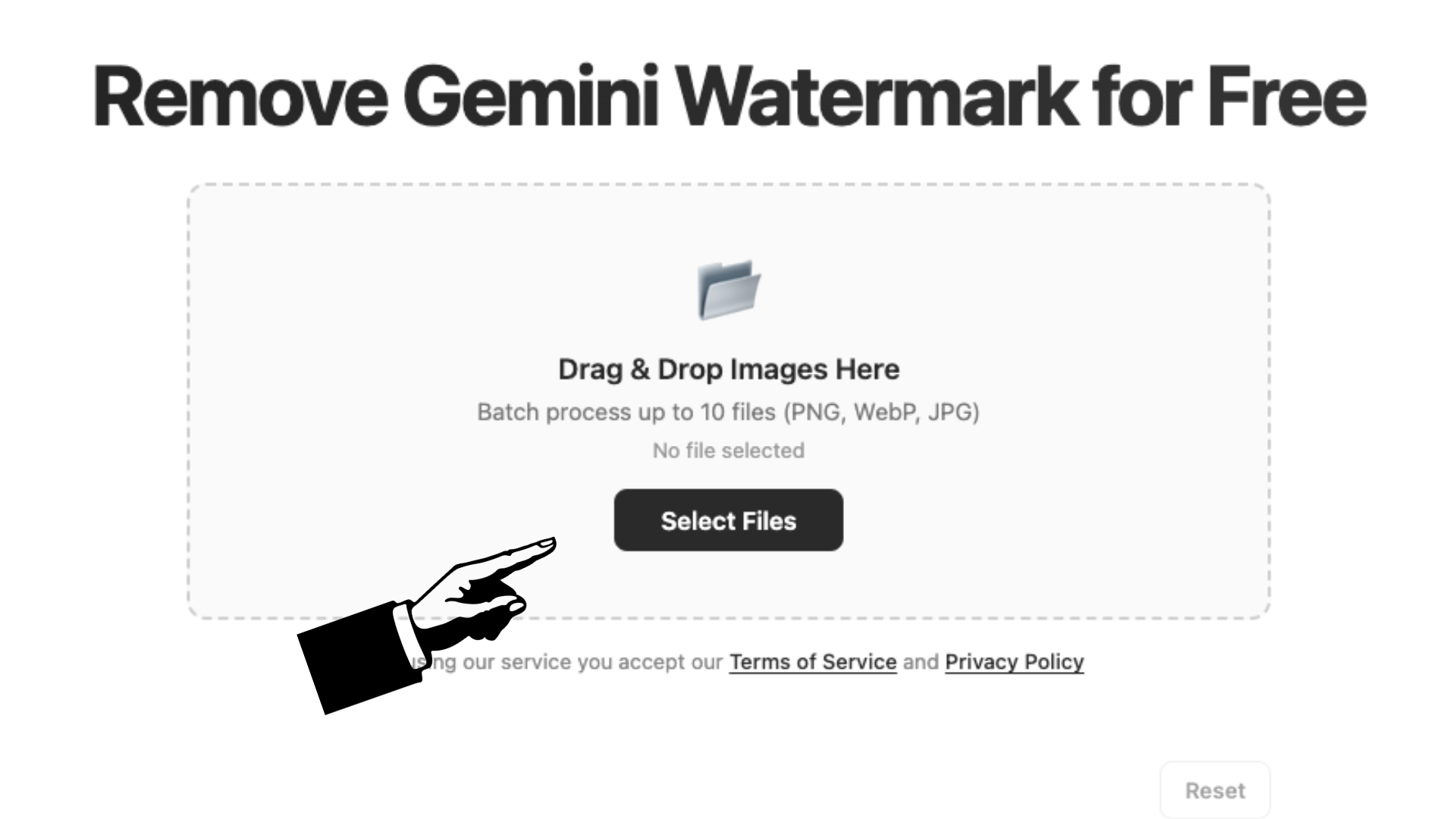
Batch process up to 10 files (PNG, WebP, JPG)
This is the most common thing people try first—and honestly, it makes sense. You type something like "generate an image without the watermark" or "please don't add the logo this time." Gemini will process your request, generate the image, and… the watermark is still there. Every time. Google built the watermark into the image generation pipeline itself, not as something the AI decides on a per-request basis. No amount of polite asking, creative prompt engineering, or even demanding changes the outcome. The AI doesn't "choose" to add it—the system applies it automatically after generation. So while it's worth a shot (it takes two seconds), don't be surprised when it doesn't work.
Another popular theory floating around Reddit and forums: if your prompt doesn't "sound" like an AI image request, maybe the watermark won't kick in. People try things like describing a scene without explicitly asking for an image, or using workarounds like "show me what this looks like" instead of "generate an image." It's a clever idea, but it doesn't work either. Gemini's image generation is a specific feature—when you trigger it, the watermark is part of the output regardless of how you phrased the request. The system isn't analyzing your prompt to decide whether to watermark; it's watermarking every image that comes out of the image generation module. The prompt wording has zero impact.
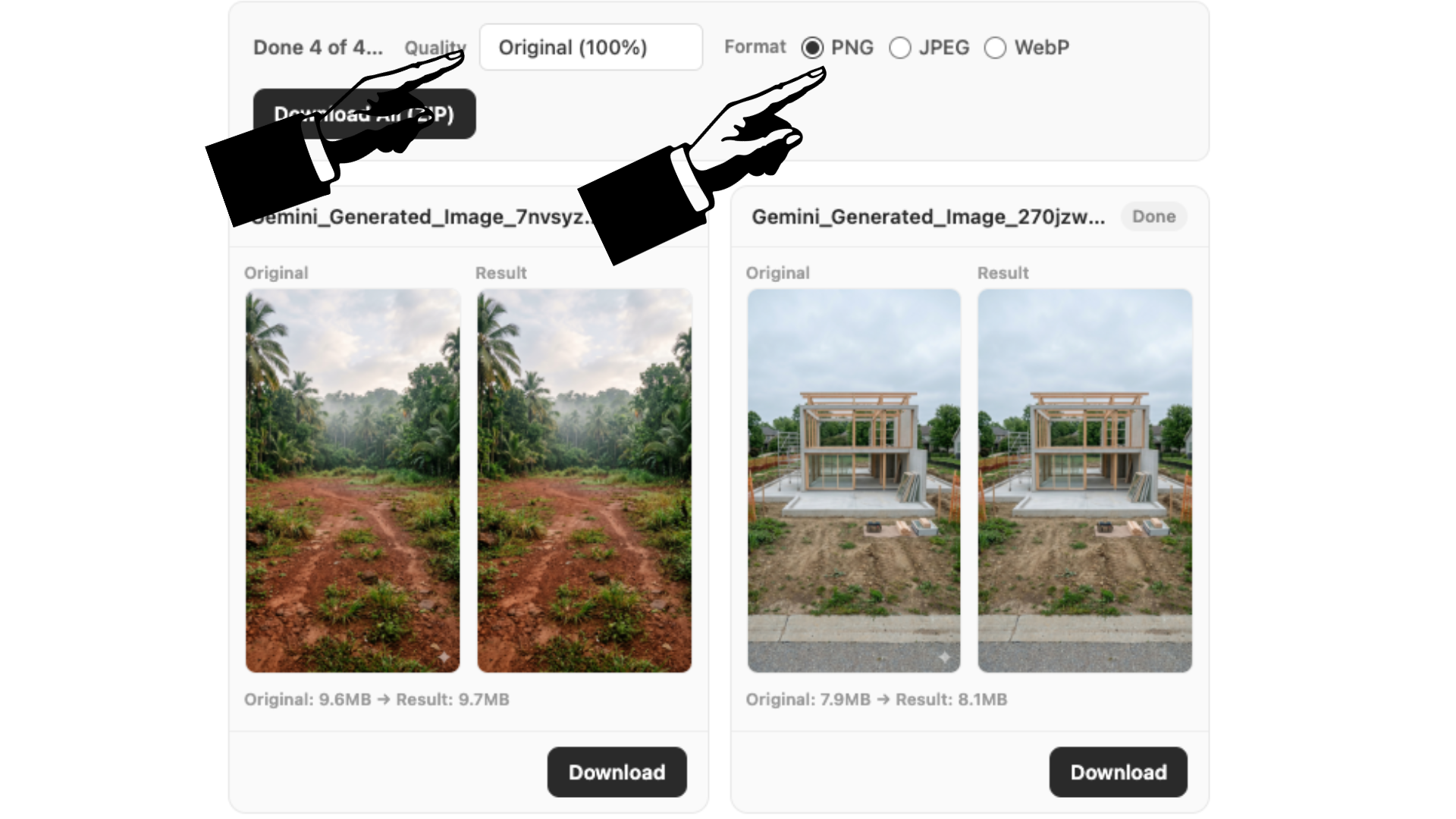
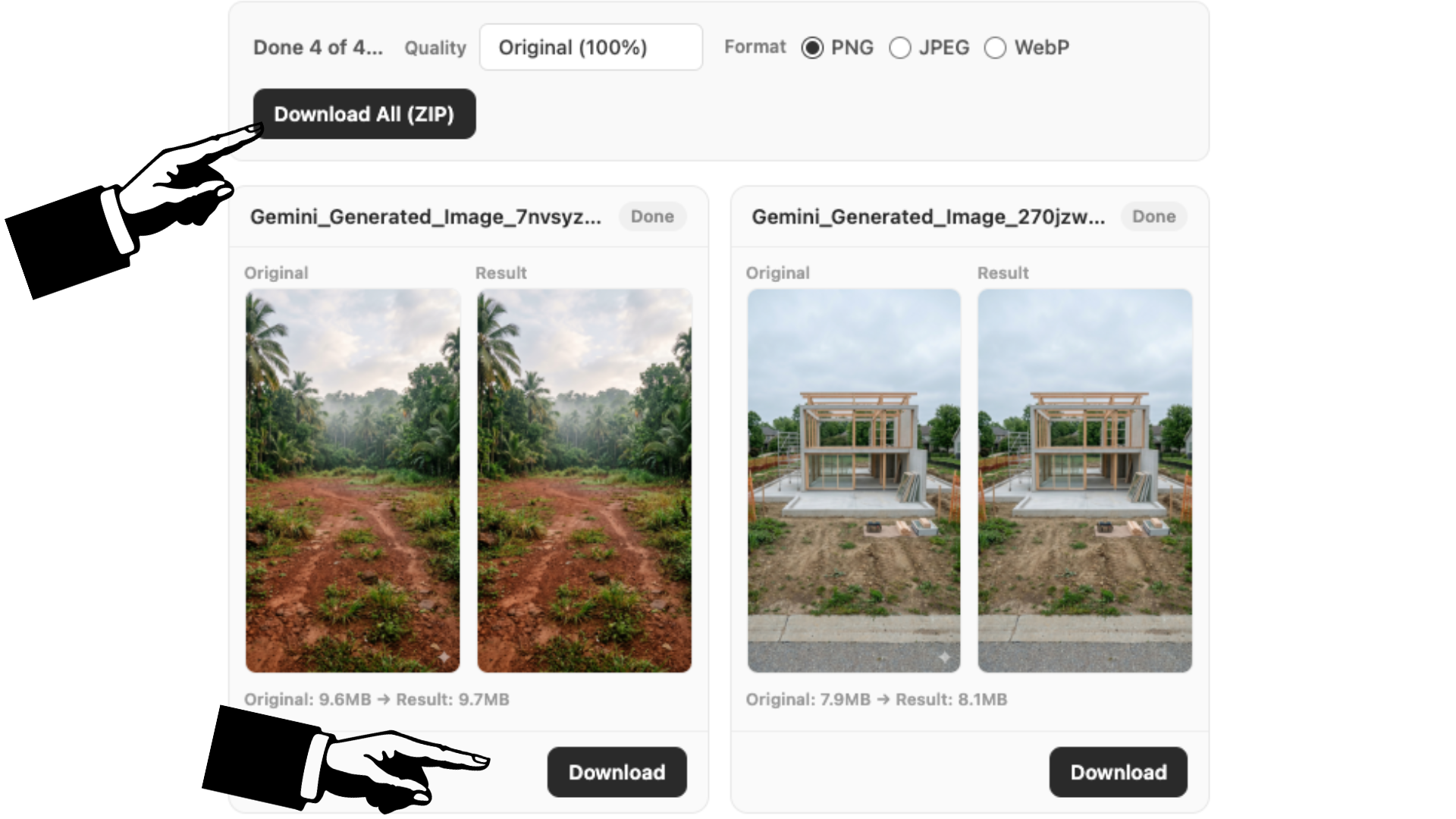
Here's the honest truth: there is no prompt-based trick to make Gemini skip the watermark. We've tested all the popular theories so you don't have to waste your time. The real solution is straightforward—generate your image however you normally would, download it with the watermark, and then use a dedicated removal tool like ours to clean it up in seconds. This approach takes less than a minute total, gives you pixel-accurate results through reverse alpha blending, and works on every single Gemini image regardless of content, style, or prompt. You can even batch process up to 10 images at once and choose your output format. No tricks needed. Just the right tool for the job.
The short answer: no, not by itself. We get this question constantly because it seems like such an obvious feature to offer. But as of now, Google has not provided any toggle, setting, or premium tier that lets you generate images without the visible watermark. Every single image produced by Gemini's image generation feature includes the semi-transparent logo in the bottom-right corner, plus the invisible SynthID digital fingerprint embedded in the pixel data. Trust us—if there were a hidden setting or a secret prompt that bypassed this, it would be all over Reddit and Twitter within hours. The watermark isn't a bug or an oversight; it's an intentional design choice by Google to label AI-generated content for transparency. They want people to know when an image came from AI, and they've made it non-optional for exactly that reason. So while you can't prevent the watermark during generation, you absolutely can remove it afterward. That's the practical workaround that thousands of people use every day.
If you're open to looking beyond Gemini, here's an honest breakdown of your options for getting AI-generated images without watermarks, ranked from most to least practical:
For most people, the first option is the sweet spot. You get to keep using Gemini—which is free and produces great images—and you get watermark-free results in the same workflow.
Let's be real for a second. The reason "how to trick Gemini" is such a popular search is because it feels like there should be a clever workaround. We're wired to look for hacks, shortcuts, and secret settings. It's the same instinct that makes us google "Netflix hidden categories" or "iPhone features you didn't know about." But with Gemini's watermark, there's no hidden menu to unlock. The watermark system isn't something the AI is choosing to do—it's a separate layer that Google applies to every image after generation, independent of the prompt or the model's behavior. Once you understand that architecture, it's clear why prompt tricks can't work. The good news? This actually simplifies things. Instead of spending an hour experimenting with different phrasings and getting frustrated, you can accept the two-step process (generate, then clean) and get consistent results every time. Sometimes the best "trick" is just knowing the right tool for the job. Our watermark remover processes images in seconds, preserves original quality, and works on mobile and desktop alike. It might not feel as sneaky as a secret prompt hack, but it actually delivers what those tricks promise.