geminilogoremover.online
🌐

Remove Watermark from Gemini Generated Images

📂

Drag & Drop Images Here

Batch process up to 10 files (PNG, WebP, JPG)

No file selected

Best Methods to Remove Watermark from Gemini Images

STEP 1

Upload your Gemini generated image

Drag and drop your Gemini-generated image into the upload area, or click to browse your files. Our tool accepts PNG, JPEG, and WebP formats—exactly the formats Gemini outputs. You can upload up to 10 images simultaneously for fast batch watermark removal.
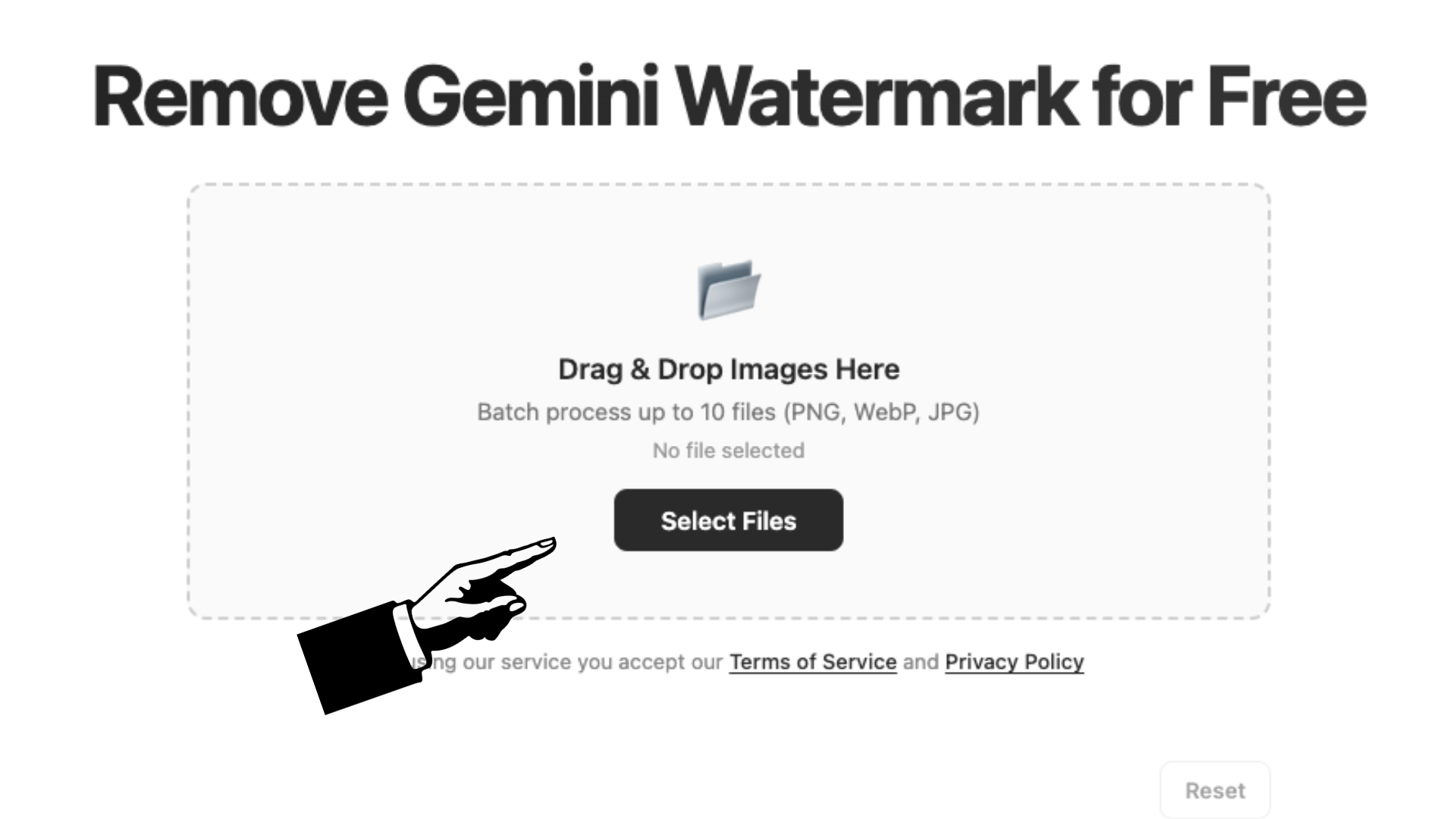
Upload interface showing Gemini generated image selection
STEP 2

Watermark is removed with reverse alpha blending

Our algorithm pinpoints the exact watermark location in the bottom-right corner and applies reverse alpha blending to reconstruct the original pixel data. This mathematical approach ensures the watermark is removed completely—no blurring, no smudging, no visible traces. You can adjust quality and format settings while the image processes.
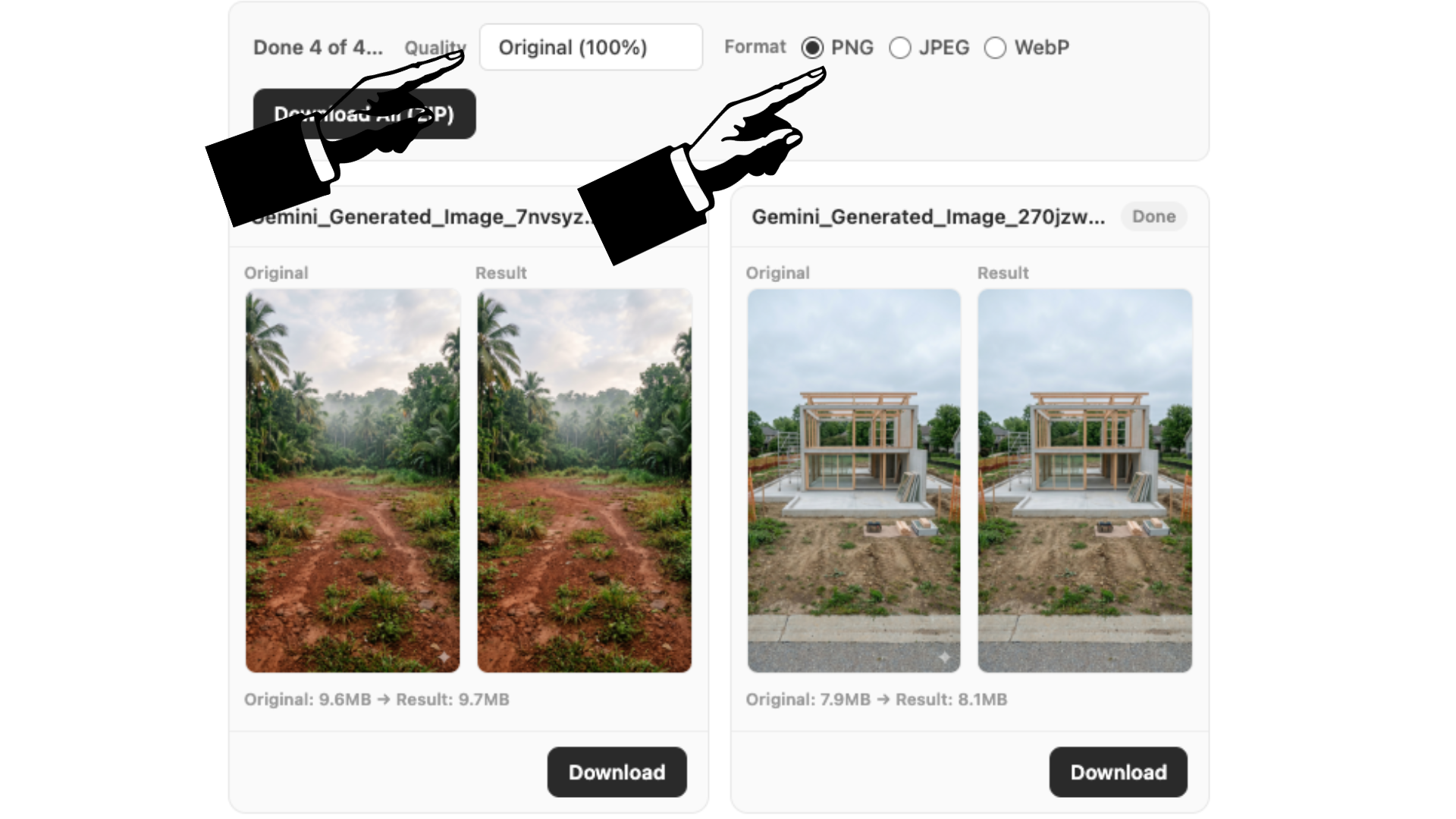
Processing screen showing watermark removal from Gemini image
STEP 3

Download your watermark-free image

Download each cleaned image individually or package all results into a single ZIP file. Choose PNG for lossless quality preservation, JPEG for compact file sizes, or WebP for the best balance. Your Gemini images are now clean, professional, and ready to use anywhere.
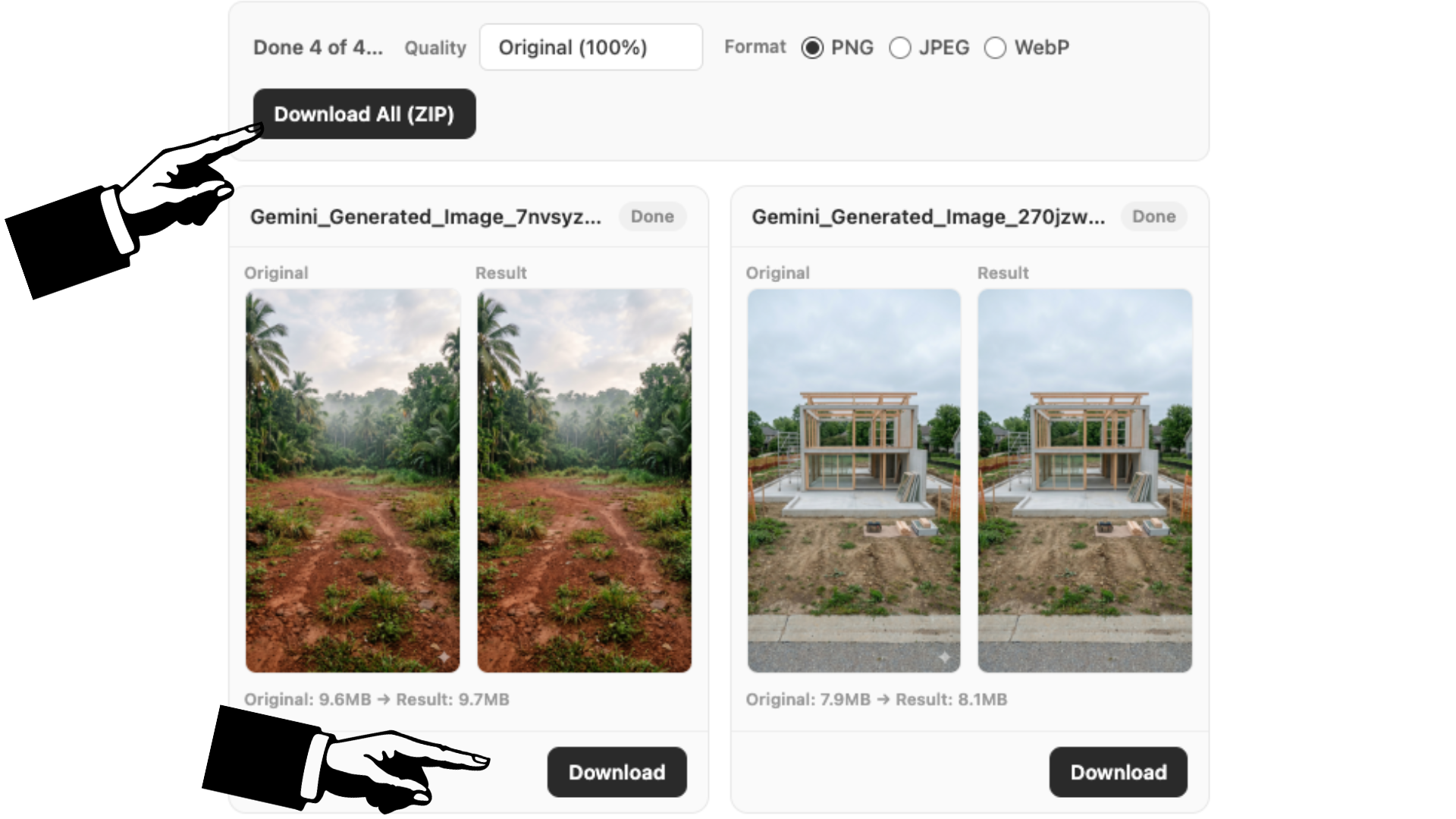
Download options with watermark-free Gemini image preview

Why Gemini Adds Watermarks to Generated Images

If you've ever used Google Gemini to create AI images, you've noticed the semi-transparent white logo that appears in the bottom-right corner of every result. This isn't a bug—it's a deliberate design choice by Google. The visible watermark serves as a transparency label, letting viewers know the image was generated by artificial intelligence rather than captured by a camera or created by a human artist. Google also embeds an invisible digital watermark called SynthID, which persists even after cropping, filters, or compression. Together, these markers help combat misinformation by making AI-generated content identifiable. While the intention is good, the visible watermark can be distracting for presentations, design projects, or personal use—which is exactly why a clean removal tool like ours exists. You get the image quality you want while still understanding the importance of the underlying transparency system.

Best Methods to Remove Watermark from Gemini Images

There are several approaches to dealing with the Gemini watermark, and they range from quick-and-dirty to precise and professional. The simplest method is cropping—just trim the bottom-right corner of your image. It works, but you lose part of your composition. Another common approach is using Photoshop's healing brush or content-aware fill, which can produce good results but requires skill, time, and access to paid software. Some online tools apply a blur or clone stamp over the watermark area, which leaves smudgy artifacts that look unpolished. The most effective method—and the one our tool uses—is reverse alpha blending. Because the Gemini watermark is applied with a known transparency pattern, we can mathematically reverse the blending equation to recover the exact original pixels. No guessing, no artifacts, no lost image area. It's the cleanest, fastest, and most reliable way to get watermark-free Gemini images.

Preserving Image Quality After Watermark Removal

One of the biggest concerns people have about watermark removal is whether the image will look worse afterward. With the right technique, the answer is no—your image quality should be indistinguishable from an unwatermarked original. Our reverse alpha blending method doesn't degrade, blur, or approximate anything. It reconstructs pixel values with mathematical precision, so the only change to your image is the absence of the watermark itself. To ensure you keep the highest possible quality, we recommend exporting in PNG format at 100% quality, which is fully lossless. If file size matters, JPEG at 85% or above still looks excellent for most uses. WebP offers a strong middle ground. The key is avoiding methods that paint over, smudge, or compress the watermark area—those are what cause visible quality loss. With our tool, you can process an image, export it, and compare it side by side with the original. The colors, sharpness, and detail remain intact. Only the logo is gone.

Frequently Asked Questions

How to remove watermark in image?
Removing a watermark from an image depends on how the watermark was applied. For the Gemini watermark specifically, the most effective method is reverse alpha blending—a mathematical technique that reverses the transparency blending used to apply the logo. Our tool automates this entire process. Simply upload your image, and the watermark is detected and removed from the bottom-right corner within seconds. You can then download the clean result in PNG, JPEG, or WebP format at your preferred quality level. No software installation, no editing skills needed, and everything happens locally in your browser for complete privacy.
How do I disable image watermark?
Currently, there is no setting or option within Google Gemini to disable the watermark during image generation. The visible logo is applied automatically to every AI-generated image, and Google has not provided users with a toggle to turn it off. The invisible SynthID watermark is also embedded at a deeper level and cannot be disabled. If you need watermark-free images, the practical solution is to generate your images in Gemini as usual, download them, and then use our free online tool to remove the visible watermark. The process takes just seconds and gives you clean, professional-quality results.
How to remove watermark from Gemini generated images?
To remove the watermark from Gemini generated images, upload your files to our tool using the drag-and-drop area at the top of this page. Our algorithm automatically locates the watermark in the bottom-right corner—whether it's the 48px or 96px version depending on your image size—and applies reverse alpha blending to reconstruct the original pixels behind it. You can process up to 10 images at once and download them individually or as a ZIP file. The entire workflow is client-side, meaning your images never leave your device. It's fast, free, and requires no registration or login.